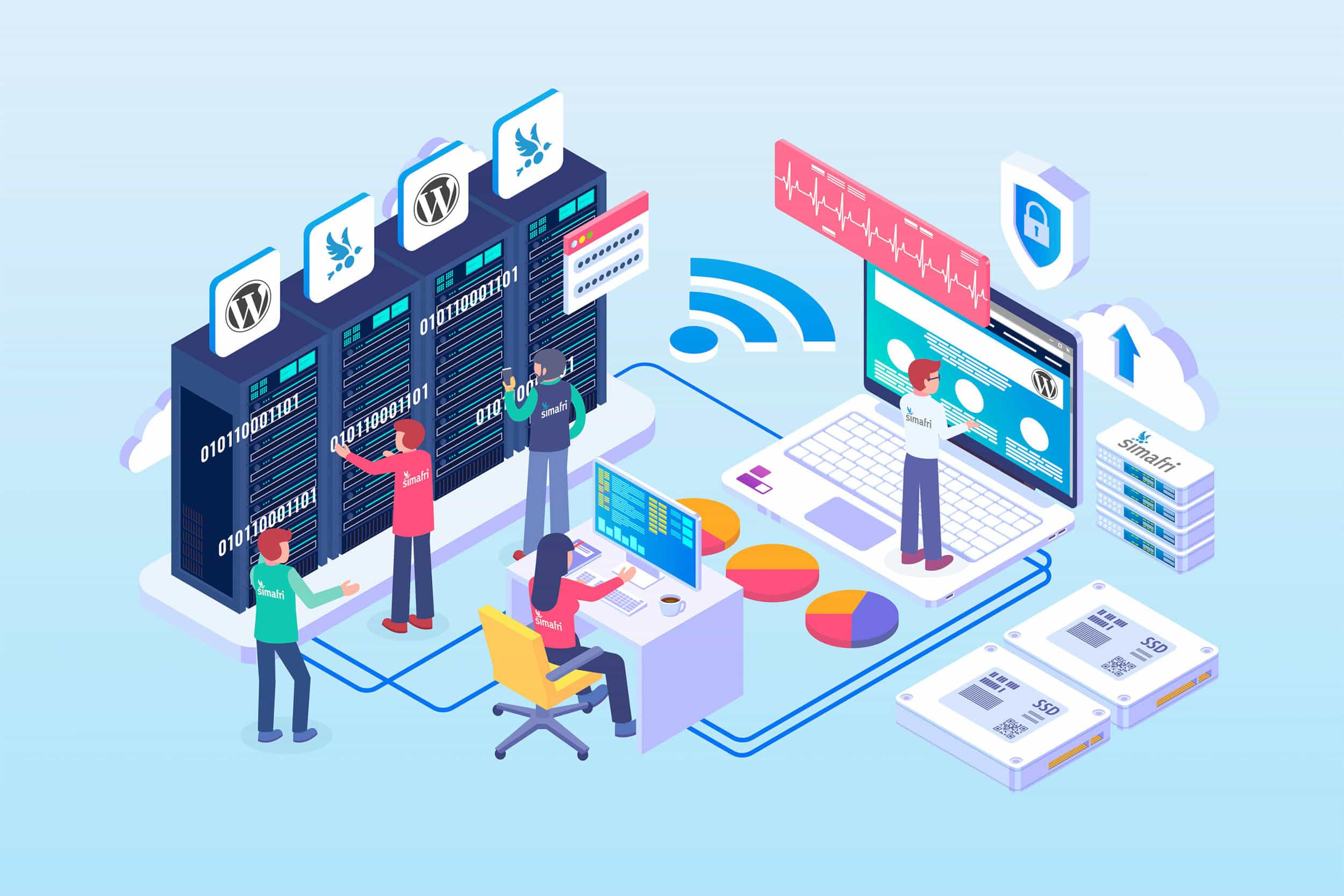
Managed WordPress hosting has changed the way websites are built, maintained, and scaled. In 2026, the best hosting providers do far more than store files on a server. They typically include features like server-level caching, staging environments, automated backups, CDN integration, malware protection, SSL management, and performance monitoring as part of a broader platform. Recent hosting guides emphasize that managed hosting is now defined by this integrated toolset, not just by faster servers.
Even so, site owners often assume that managed hosting removes the need for plugins entirely. That is not correct. In practice, plugins are still essential because they act as the bridge between your WordPress dashboard and many hosting-level tools. The key is learning how to integrate plugins with your host in a way that expands functionality without duplicating features your hosting company already provides.
What “integration” really means
Integrating managed hosting tools with plugins does not simply mean installing more plugins. It means connecting WordPress to the services your host already offers so that backups, staging, optimization, security, migration, and monitoring become easier to control from inside your workflow. Many managed hosts now provide plugin-based connectors or companion plugins that expose host-level tools directly within the WordPress admin area.
A strong example is SiteGround’s SG Optimizer, which Elementor’s 2026 managed hosting guide describes as a plugin that connects the site directly to the host’s caching, image optimization, and front-end optimization tools. This kind of plugin does not replace the host’s infrastructure. Instead, it gives WordPress a clean control layer for features already available on the server side.
This is why plugin integration should be strategic. If your host already includes premium caching, a CDN, daily backups, and a firewall, you do not want to install three extra plugins that attempt to do the same jobs. Recent managed hosting guidance explicitly notes that server-level caching is usually more effective than plugin-only caching, and many hosts ask users to disable overlapping cache plugins because of conflicts.
The main hosting tools you can integrate
Most managed WordPress hosting environments revolve around a handful of core tools. The first is performance optimization, which can include server-level caching, CDN delivery, image compression, and front-end code optimization. According to Elementor’s 2026 guide, these have become non-negotiable managed hosting features rather than nice extras.
The second is staging and deployment. Modern managed hosts commonly provide staging sites so you can test plugin updates, design changes, or code edits without breaking the live site. The same guide highlights staging as a standard developer tool in serious managed environments, while WP STAGING explains why testing updates on an environment that matches production is much safer than relying only on local development.
The third is backup and recovery. Daily automated backups are listed by Elementor as a core managed hosting feature, but many site owners still want a plugin-level backup workflow for manual snapshots, migration, or off-site copies. WP STAGING’s plugin documentation shows how backup plugins can add scheduled backups, restore options, cloud transfer, and staging-based rollback workflows on top of the hosting baseline.
The fourth is security. Managed hosts usually provide firewall protection, malware scanning, and SSL certificates, but plugin integrations still matter for vulnerability alerts, dashboard-level hardening, login rules, or centralized management. WordPress.com’s 2026 plugin guide also recommends consolidated plugin suites like Jetpack for users who want backups, security, performance, and analytics in one dashboard.
How to integrate hosting tools step by step
1. Audit your host before installing anything
Before adding plugins, review the tools already included in your hosting plan. Elementor’s 2026 guide recommends checking whether your host already provides a WAF, SSL, daily backups, staging, and built-in performance optimization. If those features are already active, your plugin choices should complement them rather than duplicate them.
For example, if your host includes server-level caching and a premium CDN, you may not need a full caching plugin. What you may need instead is a plugin that manages image compression, script loading, database cleanup, or application-level monitoring. This keeps the stack lean and reduces the chance of plugin conflicts.
2. Use host-native plugins when available
The easiest integrations usually come from plugins built specifically for the hosting environment. As noted in Elementor’s guide, SG Optimizer is valuable because it links WordPress directly to SiteGround’s native caching and optimization systems. Host-native plugins like this tend to be safer than generic alternatives because they are designed around the server stack already in use.
These plugins often expose controls for cache purging, dynamic caching, image optimization, environment switching, or PHP-related tweaks right inside WordPress. That saves time for site owners and reduces the need to jump between the hosting panel and the WordPress dashboard. In a managed setup, convenience and compatibility often matter as much as raw feature count.
3. Add staging plugins only when they fill a gap
If your host does not include easy staging controls, a staging plugin can help. WP STAGING is one of the clearest examples because it allows you to clone a production site into a staging copy, run updates and tests, and then restore or migrate if needed. Its documentation also notes that it works across popular server types including Apache, Nginx, IIS, and LiteSpeed.
This makes staging plugins useful in three common scenarios:
- Your host offers no staging feature.
- Your host offers staging only on higher-tier plans.
- You want additional backup, cloning, or migration flexibility beyond the hosting dashboard.
Even when your host already has staging, a plugin like WP STAGING can still be helpful for specific workflows such as quick pre-update snapshots, isolated plugin testing, or migrations between hosts. The important part is to decide whether you are extending the host’s capabilities or simply recreating them with more complexity.
4. Layer backup plugins carefully
Managed hosts commonly include daily backups, but plugin-based backups still serve a purpose. WP STAGING explains that backup plugins can add recurring schedules, restore points, cloud destinations like Google Drive, Amazon S3, Dropbox, and FTP, plus migration workflows for moving sites between environments.
A practical setup is to use the host’s automated backups as the primary recovery system and a plugin backup as a secondary layer before major site changes. For example, before updating WooCommerce, changing your theme, or installing a complex membership plugin, create a manual plugin-based backup and test the change on staging first. This layered approach lowers risk without depending on only one restoration path.
5. Connect consolidated tool suites when it reduces plugin sprawl
Some plugins exist specifically to reduce the number of separate tools you need. WordPress.com’s 2026 plugin guide describes Jetpack as a suite that can replace several standalone plugins by combining backups, security, speed features, and analytics in one dashboard.
This kind of integration works best when your host does not already provide a deep native control panel for these functions. If your host is minimalist, a consolidated plugin suite can give you a centralized operating layer inside WordPress. If your host already includes comparable tools, however, adding another all-in-one plugin may create unnecessary overlap.
Best practices for clean integration
The biggest mistake is feature duplication. Managed hosting works best when the hosting platform handles infrastructure tasks and plugins handle dashboard workflows or specialized enhancements. If both layers try to control full-page caching, image optimization, security hardening, and backups at the same time, conflicts become more likely.
The second best practice is to keep staging at the center of your workflow. WP STAGING’s documentation strongly recommends testing updates to themes and plugins on a clone before pushing changes to production, because this helps prevent downtime and failed updates. That advice is especially important on revenue-generating sites where even a short outage can be costly.
The third is to choose plugins based on gaps, not trends. For example:
- Use a host-native optimization plugin when your host provides server tools but needs a WordPress control layer.
- Use a staging and backup plugin when your host lacks advanced testing and restore workflows.
- Use a consolidated suite like Jetpack when you want fewer standalone plugins and your host’s dashboard is limited.
A practical integration example
Imagine a business website on managed hosting with built-in SSL, a firewall, daily backups, and server caching. In that case, the smartest plugin stack may be small:
- A host-native optimization plugin such as SG Optimizer if supported by the provider.
- A staging and cloning plugin such as WP STAGING for pre-update testing and migration flexibility.
- A selective utility plugin or suite like Jetpack only if you still need additional dashboard-level backup visibility, analytics, or site management tools.
That setup is more effective than installing a generic cache plugin, a separate backup plugin, an image optimizer, a security plugin, and a migration plugin without checking what the host already offers. In managed WordPress, integration is about reducing friction, not increasing plugin count.
The best way to integrate managed WordPress hosting tools using plugins in 2026 is to treat plugins as connectors, not replacements. Start with the hosting features already included, use host-native plugins whenever possible, and add third-party plugins only to fill real workflow gaps in staging, backups, migration, monitoring, or dashboard control.
When done well, this approach gives you the best of both worlds: the power of managed infrastructure and the flexibility of WordPress plugins. It also creates a cleaner, safer, and faster site management process that is easier to scale as your project grows.